MCP Gateways
Gateways are a way to connect multiple MCP Servers to your agent, application, or IDE. allow you to federate the tools from multiple MCP Servers into a single collection for easier management, control, and access. You can mix and match tools from different MCP Servers in the same project, and not all tools from a need to be available to the same LLM.
Configure MCP Gateways
To configure an Gateway, go to the MCP Gateways dashboard and click on the “Create ” button.
When configuring an Gateway, you can select the tools you want to include in the Gateway from any available to the :
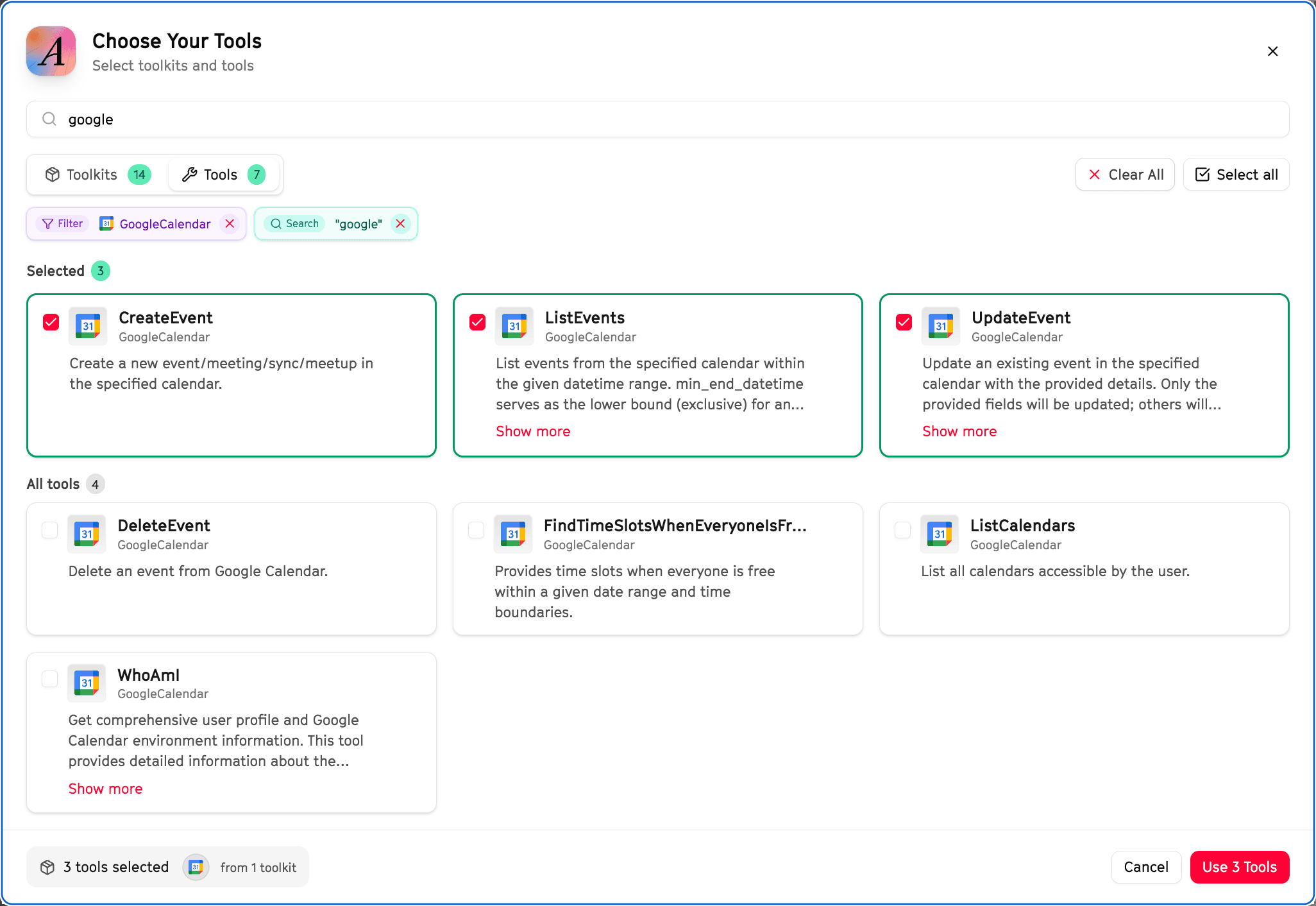

The options available when configuring an Gateway are:
- Name: The name of the Gateway. Informative only.
- Description: The description of the Gateway. This is useful for humans and some MCP clients may surface this information to the .
- LLM Instructions: Optional instructions for the LLM about how to use the Gateway.
- Slug: The slug of the Gateway. This is the URL slug that will be used to access the . It must be unique.
- Authentication: The authentication mode to use for the Gateway. This determines how the will authenticate requests to the . Users will still need to authenticate to the within the MCP Gateway as normal.
- Arcade Auth: To access the Gateway, you’ll need to authenticate with your Arcade account. We recommend using this authentication mode for in development or testing phase, or for internal use when you know all the users will have Arcade .
- Arcade Headers: To access the Gateway, you’ll need to authenticate with your Arcade by passing an Arcade in the
Authorizationheader and the ID of your end-user in theArcade-User-IDheader. We recommend using this authentication mode for in production when your or application has users without Arcade accounts.
- Allowed : A selection of tools in the Arcade Tool Catalog that will be available to the Gateway.
How to use MCP Gateways
Any client that supports the Streamable HTTP transport can use an Arcade . To use an Arcade MCP Gateway, you can use the https://api.arcade.dev/mcp/<YOUR-GATEWAY-SLUG> URL in your MCP client. Learn how to use MCP Gateways with: